
Printer Connectivity
How to Connect a Printer to Wi-Fi
Putting a printer on Wi-Fi is a one-time job that lets every phone, tablet and computer in the house print without cables. The printer needs just two things from you: the exact name of your wireless network and its password. Everything else is a question of how you get those details into a machine that may have a tiny screen, or none at all.
Below are the main methods, from the most universal to the most model-dependent. Menu wording differs between brands and even between models from the same brand, so use these steps as a map and your printer’s manual as the street-level directions.
Quick answer
Find your Wi-Fi network name and password. On the printer’s control panel, open the wireless or network settings and run the Wireless Setup Wizard, choose your network, and enter the password. No screen? Use the manufacturer’s official app or WPS. Make sure the printer supports your router’s band; many only use 2.4 GHz. Print a network configuration report to confirm it connected.
Symptoms and possible causes
This guide applies if:
- You have a new wireless printer and want to put it on your home or office network
- You changed your router or Wi-Fi password and the printer no longer connects
- Your printer has no touchscreen and you are unsure how to enter a password
- The printer cannot see your network name in its list
| Possible cause | How to recognize it | Covered in |
|---|---|---|
| Wrong password or typo | Printer reports authentication failed or connection error | Step 1 |
| Network uses a band the printer cannot use | Your network name is missing from the printer’s list | Step 5 |
| WPS window missed or disabled | WPS times out; router has no WPS button or it is turned off | Step 3 |
| Printer too far from the router | Weak signal on the configuration report; connects then drops | Step 5 |
| App cannot find the printer in setup mode | App searches indefinitely | Step 4 |
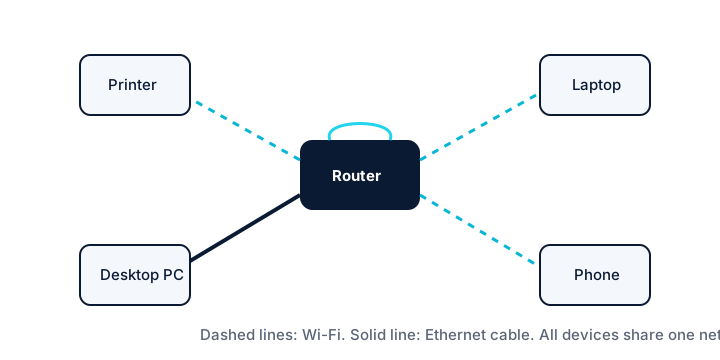
1 Gather your network details first
Find the network name and password
The network name (SSID) and password are often printed on a label on your router if you never changed them. Otherwise, check your router’s app or your notes. Passwords are case-sensitive.
Check the printer’s supported bands
Look at your printer’s specifications or manual for “802.11” details and frequency. Many home printers connect only on 2.4 GHz, while some newer models also support 5 GHz. Knowing this now avoids the most confusing failure later.
Place the printer within range
For setup, the printer should be in the same room as the router or close to it if possible. You can move it once it is connected and you have confirmed signal strength.
2 Use the control panel setup wizard
This is the most dependable method for printers with a display.
Open wireless settings
Tap the wireless icon or go to a menu such as Settings, Network, Setup or Wireless. Look for an option named something like Wireless Setup Wizard or Wi-Fi Setup.
Select your network
The printer scans and lists nearby networks. Choose yours. If it is missing, refresh the list, move closer, and check the band issue in the last section.
Enter the password carefully
Use the on-screen keyboard and switch between upper case, lower case and symbols as needed. Many printers let you show the password as you type, which helps catch mistakes.
Wait for confirmation
A successful connection usually shows a message and a solid wireless light. Some printers then offer to print a connection report, which is worth accepting.
3 Use WPS push-button setup (with caveats)
Wi-Fi Protected Setup (WPS) connects a device by pressing a button on the router and the printer within a short time window, with no password typing.
Confirm your router supports it
Look for a WPS button or a WPS option in the router’s app. Some routers have it off by default, and some newer ones have dropped it.
Start WPS on the printer
Choose WPS or push-button setup in the printer’s wireless menu, or hold its wireless button as described in the manual.
Press the router’s WPS button promptly
The window is usually about two minutes. Press the router button once; the printer should connect shortly after.
Security note: the push-button method is generally considered acceptable for a brief setup, but the older WPS PIN method has known weaknesses. If your router allows it, keep WPS switched off when you are not actively using it, and avoid PIN mode.
4 Set up with an app or on a printer without a screen
Install the official app
Most manufacturers offer a setup app for phones and computers. Install it only from your device’s official app store or the manufacturer’s official website. Avoid search ads for third-party “printer Wi-Fi setup” services, which may ask for payment or remote access.
Put the printer into setup mode
New printers often enter setup mode automatically for a limited time. If not, the manual will describe a button press or combination, sometimes holding the wireless button, that restarts it. The printer may briefly broadcast its own temporary network for the app to use.
Follow the app’s prompts
The app finds the printer, asks which network to join and sends it the password. Allow any Bluetooth or local network permissions the app requests on your phone, since it needs them to find the printer.
Use the embedded web page as an alternative
If the printer is temporarily connected by USB or Ethernet, you can often open its built-in web page and enter Wi-Fi details there. Our printer network settings guide explains how to reach it.
5 Confirm the connection and solve band problems
Print a network configuration report
From the printer’s Reports, Network or Setup menu, print the network configuration or wireless test report. It shows whether the printer is connected, the network name, its IP address and signal strength.
Read the result
A connected status with an IP address such as 192.168.x.x means success. An address starting with 169.254 means the printer joined the network but did not get a proper address from the router.
Handle a combined 2.4/5 GHz network
Many routers broadcast one name for both bands. Usually a 2.4 GHz-only printer still connects fine. If it cannot, your router’s settings may let you temporarily separate the bands or create a 2.4 GHz-only name. Changing router settings affects other devices, so note the original settings first.
Add the printer to your devices
Once connected, add the printer on each computer; see how to add a printer to a computer.
Additional troubleshooting methods
Restart the router and printer
A simple power cycle of both devices resolves many failed join attempts, especially after a router firmware update.
Try a temporary Ethernet cable
If the printer has an Ethernet port, connecting it by cable lets you reach its settings page and configure Wi-Fi from a computer. Remove the cable afterward if the manual says the printer will not use both at once.
If it keeps disconnecting
Connections that work and then drop are a different problem; see wireless printer connection problems.
Model and operating-system considerations
| If you use | What to know |
|---|---|
| Printers with a touchscreen | Use the setup wizard; it is the most direct method. |
| Printers without a screen | Rely on the official app, WPS or a temporary cable. Status lights indicate progress; the manual explains the patterns. |
| Mesh Wi-Fi systems | Usually one network name for all bands; most printers join fine, but a printer near a weak node may struggle. |
| Enterprise networks | Networks requiring a username and password per person (WPA-Enterprise) are often unsupported by home printers; ask IT. |
Frequently asked questions
Why can’t my printer see my 5 GHz network?
Many printers have radios that only work on 2.4 GHz, so they never see a network that uses only 5 GHz. Check your printer’s specifications. If you have a combined network name, the printer will typically join on 2.4 GHz automatically.
Do I need to reconnect the printer if I change my Wi-Fi password?
Yes. The printer stores the old password and will fail to reconnect. Run the wireless setup again with the new password.
Is WPS safe to use?
Push-button WPS is a reasonable short-term convenience. The PIN version has documented security flaws, so avoid it and consider turning WPS off on your router when you are done.
Can a printer join a network that has a sign-in web page?
Usually not. Hotel, café and some campus networks require a browser sign-in that printers cannot complete. Use Wi-Fi Direct or USB instead.
Related guides
-
Connectivity
Printer Network Settings Explained: IP Addresses, DHCP and the Built-In Web Page
What the numbers on a printer’s network report mean, how to keep its address steady, and how to reach its settings from a browser.
-
Connectivity
Wireless Printer Connection Problems: Why It Disappears and What to Check
A cause-by-cause method for printers that cannot be found, keep disconnecting or print slowly over Wi-Fi.
-
Printer Setup
How to Add a Printer to a Computer on Windows, Mac or Chromebook
The operating-system steps for adding a printer that is already powered on and connected, plus what to do when it does not appear.