
Printer Maintenance
Drum and Toner Cartridges: How Laser Printers Work
When a laser printer asks you to “replace drum” but you just put in new toner, it is natural to wonder whether the two are the same thing. They are not, although on some printers they come packaged together.
This guide explains, in plain terms, how a laser printer builds a page, what the drum and toner each do, how to recognize a drum that is wearing out and how to handle these parts without damaging them. Exact part designs and reset steps differ between manufacturers and models, so treat your printer’s manual as the final word.
Quick answer
Toner is the dry powder that forms the image; the drum is the light-sensitive cylinder that carries that image to the paper. Some printers combine them in one cartridge, while others use a separate drum unit that lasts through several toner cartridges. A worn drum often causes repeating marks, gray background or faded areas that new toner does not fix.
Symptoms and possible causes
This guide applies if:
- The printer shows a “replace drum” or “drum end of life” message
- Marks or spots repeat at regular intervals down the page
- Pages have a light gray background or speckling
- Print stays faded or patchy even after installing new toner
- You are not sure whether to buy a drum, toner or both
| Possible cause | How to recognize it | Covered in |
|---|---|---|
| Drum reaching the end of its rated life | Drum warning, faded or uneven print | Step 3 |
| Scratch or damage on the drum surface | Line or spot repeating at the same spacing | Step 3 |
| Drum exposed to too much light | Dark or gray areas after the drum was left out | Step 4 |
| Low or unevenly distributed toner | Light vertical bands, toner low message | Step 2 |
| Counter not reset after replacing a part | Warning persists despite a new drum or toner | Step 5 |
Safety precautions
- Turn the printer off and wait for the fuser to cool before reaching inside; it can be hot enough to burn.
- Avoid breathing toner dust. Do not shake a cartridge hard, blow out spilled toner, or vacuum it with household equipment.
- Never touch the drum surface or force a cartridge into place.
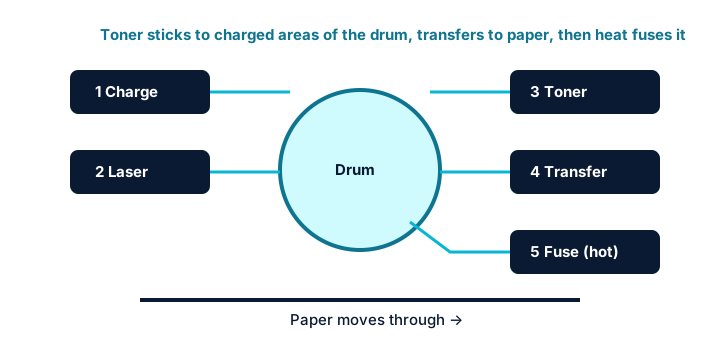
1 How laser printing works, in five stages
A laser printer creates each page using static electricity, light and heat. The stages happen in a fraction of a second as the drum turns.
Charge
A roller or wire gives the surface of the drum an even electrical charge.
Laser exposure
A laser or LED array shines onto the drum in the pattern of your page, changing the charge wherever text or images should appear. The drum now carries an invisible electrical picture.
Toner development
Charged toner particles are drawn onto the drum only where the picture is, making the image visible in powder form.
Transfer
Paper passes beneath the drum, and an opposite charge pulls the toner off the drum onto the sheet. Color lasers repeat this for cyan, magenta, yellow and black, often via a transfer belt.
Fusing
The paper passes through the fuser, where heat and pressure melt the toner into the fibers. A cleaning blade then wipes leftover toner from the drum so the cycle can start again.
2 Drum unit vs toner cartridge
The two parts wear out at different rates, which is why manufacturers package them in different ways.
Toner cartridge
Holds the powder and, on many models, the roller that feeds it to the drum. It is replaced when the toner runs low.
Drum unit
Holds the light-sensitive drum. On printers with a separate drum, it usually lasts through several toner cartridges before needing replacement.
Combined cartridges
Many printers build the drum into the toner cartridge, so every replacement brings a fresh drum. Others keep them separate, and some color models use separate drums per color. Your manual or supply list shows which design you have.
3 Drum life and signs of a worn drum
Drums are rated for an approximate number of pages, but real life depends on how you print. Printing one or two pages at a time often wears drums faster than long runs, because each job involves extra rotations.
Watch for repeating defects
A mark that repeats at the same distance down the page usually comes from a roller or drum. Some manuals include a chart that matches the spacing to a specific part.
Look for background shading or fading
A worn drum may leave a gray haze, speckles or uneven density that a new toner cartridge does not fix.
Check the printer’s status
Many printers track drum life and show remaining life in a status report or menu. Our guide to printer error messages covers common warnings.
Faded print can also come from low toner or settings; see faded printing if your drum is fairly new.
4 Light exposure and handling cautions
Drums are sensitive. A few seconds of careless handling can leave a permanent mark on every page.
Limit light exposure
Keep a removed drum out of direct sunlight and bright light. Place it on a clean sheet of paper and cover it if it will be out for more than a few minutes; your manual may state a time limit.
Do not touch the drum surface
Hold the unit by its handles. Skin oils and scratches on the shiny cylinder cause marks.
Keep it level
Tilting or turning a cartridge upside down can spill toner. Gently rocking a new toner cartridge side to side before installing it is often recommended to distribute the powder, but only if your manual says so.
5 Replacing parts and resetting counters
Replacement is usually simple, but the details differ by model.
Follow the manual’s order of steps
Some printers require the toner to be separated from the drum, then clicked into the new drum. Remove all packing tape, clips and protective covers listed in the instructions.
Reset the drum counter if required
Some printers detect a new drum automatically. Others need a manual reset through the control panel; the steps are model-specific, so use the manual or the manufacturer’s official support site rather than guessing.
Print a test page
Confirm the warning has cleared and the output looks right. Recycle the old unit through a manufacturer or local program where available.
Additional troubleshooting methods
Clean the corona wire, if your model has one
Some drum units include a small sliding tab for cleaning a charging wire, which can clear thin vertical lines. Use it only if your manual describes it.
Check the paper
Damp, textured or unsupported paper can cause poor toner transfer that looks like a drum problem. Try fresh, plain paper first.
Model and operating-system considerations
| If you use | What to know |
|---|---|
| Combined toner and drum | A new cartridge replaces the drum too, so drum-related marks often disappear when you replace it. |
| Separate drum unit | Track drum life separately; replacing toner alone will not fix drum wear. |
| Color laser printers | Defects in only one color point to that color’s toner or drum. A transfer belt or other parts may also be involved. |
| Third-party drums and toner | Recognition and counter resets can behave differently; check your warranty terms and the manufacturer’s documentation. |
Frequently asked questions
Why does my printer still say “replace drum” after I installed a new one?
Some printers need the drum counter reset manually after replacement. The exact steps are model-specific and listed in your manual or on the manufacturer’s support site.
Can I keep printing after a drum warning?
Some printers allow it for a while, others stop. Print quality may decline, so check results and have a replacement ready.
How can I tell whether a mark comes from the drum or the toner?
Measure the distance between repeating marks and compare it with your manual’s repeating defect chart, if it has one. Marks that remain with new toner often point to the drum.
Related guides
-
Maintenance
Ink and Toner Explained: Types, Page Yield and Storage
A plain-language explanation of inkjet ink, laser toner, cartridges and tanks, page yield standards, storage and recycling.
-
Print Quality
Faded Printing: Why Prints Look Pale and How to Fix It
Work out whether pale prints come from supplies, a saving mode, the paper or a worn part.
-
Print Quality
How to Fix Printer Streaks and Lines on Printed Pages
Read the pattern of the streak first, then match the fix to your inkjet, laser printer or scanner.