
Printer Maintenance
Printhead Cleaning: When and How to Clean Inkjet Nozzles
An inkjet printhead has hundreds or thousands of nozzles, each far thinner than a human hair. When some of them dry out or get blocked, prints develop thin horizontal gaps, missing colors or faint bands. Printhead cleaning pushes ink through the nozzles to clear those blockages.
Cleaning is useful, but it is not free: every cycle uses ink, and running cycles back to back can waste a lot of it without helping. This guide explains how to confirm the problem first, how to use the printer’s built-in cleaning sensibly, and what to avoid. It applies to inkjet printers only; laser printers do not have printheads.
Quick answer
- Print a nozzle check pattern and look for gaps or missing colors.
- If you see gaps, run one standard cleaning cycle from the printer menu or software.
- Print another nozzle check.
- Repeat only as many times as your manual recommends, then let the printer rest before trying again.
- Use deep cleaning or manual cleaning only if your manufacturer documents it.
Symptoms and possible causes
This guide applies if:
- Fine horizontal white lines run through text or images
- One color is missing or looks wrong, such as green printing as blue
- Black text looks faint, broken or patchy
- The printer has not been used for several weeks
- A nozzle check pattern shows gaps or missing blocks
| Possible cause | How to recognize it | Covered in |
|---|---|---|
| Ink dried in nozzles after a period of non-use | Gaps across several colors after the printer sat idle | Step 2 |
| Air bubble after a cartridge change or tank refill | One color suddenly missing after replacing supplies | Step 2 |
| Stubborn clog not cleared by standard cycles | Gaps remain after the recommended number of cleanings | Step 3 |
| Empty or nearly empty ink | Cleaning makes no difference; low ink warning | Step 1 |
| Printhead misalignment rather than a clog | Nozzle check looks complete but lines look jagged or doubled | Step 1 |
Safety precautions
- Keep fingers away from the carriage while the printer is on; it can move without warning.
- Turn the printer off with its power button before any manual cleaning so the head can park, then unplug it.
- Never touch the nozzle plate or the electrical contacts on cartridges or the printhead.
1 Confirm the problem with a nozzle check
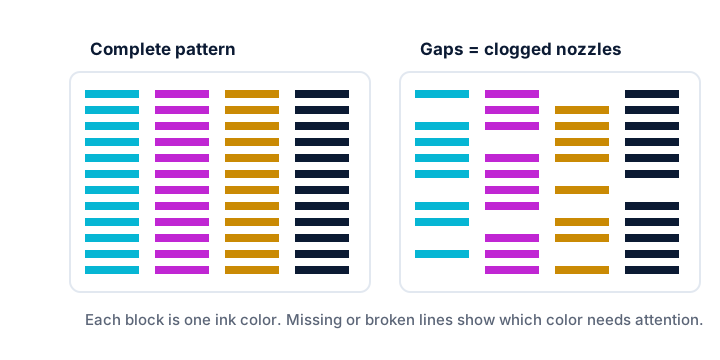
A nozzle check, sometimes called a print quality report or test pattern, prints a grid of fine lines for each color. It is the quickest way to tell whether cleaning is actually needed.
Load plain paper
Use ordinary letter-size paper unless your manual says otherwise.
Print the pattern
Find the nozzle check in the printer’s control panel, usually under a Maintenance or Setup menu, or in the manufacturer’s app or software. Menu names vary by model and software version.
Read the result
A healthy pattern shows complete, unbroken lines in every color. Missing segments or faint blocks mean blocked nozzles. If every line is present but text still looks wrong, the cause may be alignment instead; see printhead alignment.
Check ink levels
If one color is completely missing, confirm the cartridge or tank is not empty before cleaning. Cleaning cannot fix an empty supply.
2 Run an automatic cleaning cycle
Nearly every inkjet has a built-in cleaning routine that forces ink through the nozzles and wipes the head inside the printer. This is the safest first step.
Start one cleaning cycle
Choose Head Cleaning, Clean Printhead or a similarly named option from the maintenance menu or software. Some printers let you clean only the colors that showed gaps, which saves ink.
Let it finish
Do not open covers or turn the printer off while cleaning runs. It may take a minute or two and can be noisy.
Print another nozzle check
Compare it with the first pattern. Improvement, even partial, suggests further cleaning may help.
Follow the manual on repeats and waiting
Manufacturers usually recommend a limited number of consecutive cycles and, if gaps remain, waiting a period of time, often several hours or overnight, before trying again. Follow your manual’s numbers, because each cycle consumes ink and can fill the printer’s internal waste ink pad.
3 Use deep or power cleaning sparingly
Some printers offer a stronger routine called deep cleaning, power cleaning or ink flush. It uses considerably more ink than a standard cycle.
Use it only after standard cleaning
Most manuals suggest deep cleaning only when standard cycles have not worked. Check that you have enough ink first; some printers will not start the routine when levels are low.
Run it once, then check
After a deep clean, print a nozzle check. If gaps remain, leave the printer to rest as your manual advises rather than repeating immediately.
Know when to stop
If repeated cleaning makes no difference, the printhead or cartridge may need replacement, or the printer may need service. The manufacturer’s official support site is the place to confirm next steps for your model.
4 Manual cleaning, only where the manufacturer documents it
Videos online show many ways to clean printheads by hand. Many of them risk damaging the head or voiding a warranty. Only clean manually if your printer’s official documentation describes a procedure.
Check what kind of printhead you have
Some printers put the printhead on each ink cartridge, so a new cartridge brings a fresh head. Others have a fixed or semi-permanent head built into the printer that lasts much longer and is costlier to replace. Your manual will tell you which applies.
Cartridge heads
Where the manufacturer allows it, gently dabbing the cartridge’s nozzle area with a lint-free cloth lightly dampened with distilled or clean water can remove dried ink. Never wipe across the nozzles hard, and do not touch the electrical contacts.
Fixed or removable heads
Follow the exact steps in the manual if any are provided. Do not soak, disassemble or flush a head unless the manufacturer documents that method.
Avoid alcohol and solvents
Do not use rubbing alcohol, window cleaner or other solvents on a printhead unless your manual specifically says so; they can damage nozzles and seals.
Additional troubleshooting methods
Prevent clogs by printing regularly
Printing a page with some color every week or so keeps ink moving. Turn the printer off with its own power button rather than a power strip so it can cap the head and run scheduled maintenance.
Replace supplies promptly and correctly
Install a new cartridge soon after removing the old one so the head is not left uncapped, and keep unused supplies sealed. Our guide to ink and toner covers storage.
Rule out other causes of lines
If the nozzle check is perfect but prints still have lines, the cause lies elsewhere. Work through streaks and lines on prints.
Model and operating-system considerations
| If you use | What to know |
|---|---|
| Printheads in cartridges | A new cartridge includes a new head, so replacing the cartridge is often the practical fix for a persistent clog. |
| Fixed printheads | Clogs need more patience: clean conservatively, wait between cycles and contact the manufacturer if they persist. |
| Ink tank printers | Air in the ink lines after a refill can mimic a clog. Some models offer an ink flush routine; follow the manual. |
| Laser printers | No printhead to clean. Faded or streaky laser output usually relates to toner, the drum or the fuser instead. |
Frequently asked questions
How many times should I run a cleaning cycle?
Follow your printer’s manual. Many recommend only a couple of consecutive cycles before resting the printer for several hours. Running cycles continuously wastes ink without helping.
Does printhead cleaning use a lot of ink?
Every cycle uses some ink, and deep cleaning uses noticeably more. That is why checking with a nozzle pattern first is worthwhile.
Can a waste ink pad fill up from cleaning?
Yes. Ink from cleaning goes into an internal absorber. When it reaches its limit, some printers show a maintenance message and need a part replaced, so avoid unnecessary cleaning.
Related guides
-
Print Quality
Printer Alignment: How to Align a Printhead for Sharper Prints
Learn when an inkjet needs aligning, how to run automatic or manual alignment, and what to try if it does not help.
-
Print Quality
How to Fix Printer Streaks and Lines on Printed Pages
Read the pattern of the streak first, then match the fix to your inkjet, laser printer or scanner.
-
Maintenance
Ink and Toner Explained: Types, Page Yield and Storage
A plain-language explanation of inkjet ink, laser toner, cartridges and tanks, page yield standards, storage and recycling.