
Print Quality
Printer Smudging: How to Stop Smeared and Smudged Prints
Smudges come in two very different kinds, and the fix depends on which one you have. On an inkjet, the ink is liquid; smears happen when it is touched, rubbed or stacked before it dries, or when something inside the printer is already wet with ink. On a laser printer, toner is a dry powder that must be melted onto the paper; if that step falls short, the image looks fine but wipes off under a fingertip.
A simple test tells them apart. Print a page, let it sit for a few minutes, then run a dry finger across a dark area. Ink that is still damp, or marks only on the back of the page, suggests an inkjet handling or roller issue. Dry powder that lifts away cleanly is a laser fusing issue.
Quick answer
- Set the paper type in the print dialog to exactly what is loaded.
- Inkjet: let pages dry before handling, slow down double-sided printing, and clean the rollers.
- Laser: if toner rubs off, check paper type and weight settings, then watch for fuser warnings.
- Look inside for spilled ink or toner and clean only the areas your manual describes.
Symptoms and possible causes
This guide applies if:
- Ink smears when you pick up the page or stack prints
- Marks or streaks appear on the back of printed pages
- Double-sided prints are smudged on the first side
- Laser-printed text wipes off or leaves gray powder on your fingers
- Random toner specks or a gray film appear across the page
| Possible cause | How to recognize it | Covered in |
|---|---|---|
| Paper type setting does not match the paper | Ink pools on glossy paper; toner not bonded on heavy stock | Step 1 |
| Handling or stacking before ink dries | Smears on the front, transfer onto the next sheet | Step 2 |
| Duplex printing too fast for the ink | First side smudged after printing the second | Step 2 |
| Ink on rollers or the platen | Marks on the back of the page or along the edges | Step 3 |
| Toner not fusing properly | Image rubs off; dry powder on fingers | Step 4 |
| Toner leak or dirty internal parts | Specks, gray haze or loose toner inside the printer | Step 4 |
Safety precautions
- Turn off and unplug the printer before cleaning inside it.
- The fuser in a laser printer becomes very hot. Let the printer cool for at least 30 minutes, and never touch or try to clean the fuser yourself.
- Do not breathe in toner dust or vacuum loose toner with a household vacuum; wipe it up with a damp cloth and wash skin with cold water.
- Never pour or spray liquid inside a printer, and avoid touching electrical contacts or the inkjet printhead surface.
1 Get the paper and settings right
The paper type setting controls how much ink an inkjet lays down and how much heat a laser printer applies. A mismatch is the most common cause of smudging on both.
Choose the exact paper type
In the print dialog, open printer properties or the print options and pick the paper type that matches what is in the tray. For photo paper, choose the specific glossy or matte type. For a laser printer, choose heavy, thick or cardstock settings when you use heavier paper, and check the paper is within the weight range your manual lists.
Load paper the right way up
Coated photo paper only absorbs ink on its printable side. Ink on the back sits on top and smears for hours. Check the packaging for which side to print on and how your printer expects it loaded.
Use paper made for your printer type
Inkjet photo paper should not go through a laser printer, where the heat can damage the coating and the printer. Likewise, some laser-oriented glossy papers do not absorb inkjet ink. Check the package says it suits your printer type.
Keep paper dry and flat
Paper that has absorbed moisture curls, rubs against parts inside the printer, and holds ink or toner poorly. Store it sealed and flat, and try a freshly opened ream if your current stack has been sitting out.
2 Give inkjet prints time to dry
Let pages sit before handling
Photo and heavy-coverage prints can stay tacky for a few minutes or longer, depending on paper and humidity. Lift them by the edges and lay them out separately rather than stacking them straight from the output tray.
Slow down double-sided printing
When printing on both sides, the first side has only seconds to dry before it touches rollers again. Many drivers offer a dry time or ink drying setting for duplex printing; increasing it can reduce smears. If your printer has no such option, print the second side manually after the first has dried.
Lower ink load if pages are soaked
Very dark images on plain paper can carry more ink than the paper absorbs quickly. Choosing the correct plain paper setting, rather than a photo mode, usually reduces the amount of ink applied.
3 Clean ink off rollers and the platen
If smudges show up on the back of the page or along the edges in the same place each time, something inside is carrying ink onto the paper.
Use the paper feed cleaning function first
Many inkjets have a roller cleaning or paper guide cleaning function in the maintenance menu, which feeds plain paper through to pick up residue. Run it once or twice, as your manual describes.
Wipe the feed rollers
With the printer off and unplugged, wipe the rubber rollers you can reach in the paper path with a lint-free cloth lightly dampened with water, then let them dry. Do not use alcohol or solvents unless your manual allows it.
Clean ink from the platen if documented
Printing borderless or on undersized paper can leave ink on the platen or the strip of ribs under the printhead. Some manuals show how to wipe this area carefully with a cotton swab; others advise against touching it. Follow your model’s instructions, and keep clear of the printhead and the ink absorber pads.
Check your paper size setting matches the loaded paper. Printing a large page onto a small sheet sprays ink past the edges, which is a common way the platen gets dirty.
4 Fix laser toner that rubs off or spreads
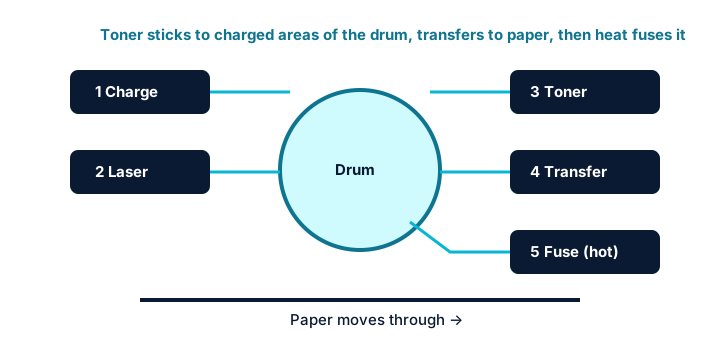
Laser printers rely on heat and pressure to bond toner to paper. The diagram below shows where fusing happens in the process.
Match paper type and weight settings
Heavier paper soaks up more heat. If the driver or printer is set to plain paper while you use cardstock or thick stock, toner may not fully melt. Select the matching setting, and use paper within the weight limits in your manual.
Check for fuser messages
A worn fuser may not reach the right temperature or apply even pressure, leaving toner that rubs off or faint repeated images. Many printers show a fuser warning or count fuser life on a status page. Fuser replacement is model-specific: some are user-replaceable as described in the manual, others need service.
Inspect for loose toner
With the printer off and cool, remove the toner cartridge and drum unit and look for loose powder in the cavity or on the cartridge. A cracked or damaged cartridge can leak and leave specks or a gray film. Wipe away loose toner with a dry or slightly damp lint-free cloth.
Replace a leaking cartridge
If toner keeps appearing, the cartridge is likely damaged and should be replaced. See drum and toner cartridges for how to handle and store them.
Additional troubleshooting methods
Run a general cleaning routine
Dust and paper fibers inside the paper path hold onto ink and toner. Our printer cleaning guide covers safe cleaning of the outside and accessible interior.
Tell smudges from streaks
If the mark is a clean, consistent line rather than a smear, it is more likely a printhead or drum issue. See printer streaks and lines.
Try a different paper brand
Some papers suit certain printers better than others. A pack of the manufacturer’s recommended paper is a useful benchmark when you cannot tell whether the printer or the paper is at fault.
Model and operating-system considerations
| If you use | What to know |
|---|---|
| Inkjet printers | Smudging usually comes from paper mismatch, drying time or ink on rollers. Roller cleaning and duplex dry time options vary by model. |
| Laser printers | Toner that rubs off points to fusing: paper settings first, then the fuser. Fuser parts and replacement intervals are model-specific. |
| Photo printing | Use paper designed for your printer type, load it on the printable side and allow extra drying time before framing or stacking. |
| Windows and macOS | Paper type and duplex options appear in printer preferences (Windows 11: Settings > Bluetooth & devices > Printers & scanners) or in the macOS print dialog. Names vary by driver. |
Frequently asked questions
Why does ink smear on glossy photo paper?
The paper may be loaded upside down, or the driver may be set to plain paper, which lays down too much ink. Check the printable side, choose the matching glossy paper type and let prints dry fully before touching them.
Why are there ink marks on the back of my pages?
Ink has collected on the rollers or the platen, often after borderless printing or a paper size mismatch. Run the roller cleaning function if your printer has one and wipe reachable rollers with a damp, lint-free cloth.
Is it safe to keep using a laser printer when toner rubs off?
You can print, but documents may smear and loose toner can build up inside. Check paper settings first; if toner still rubs off on plain paper, or the printer shows a fuser warning, follow the manual or get the printer serviced.
Related guides
-
Maintenance
How to Clean a Printer Safely: A Basic Care Routine
A safe, step-by-step routine for cleaning the outside, scanner glass, paper feed rollers and interior of a home or office printer.
-
Print Quality
How to Fix Printer Streaks and Lines on Printed Pages
Read the pattern of the streak first, then match the fix to your inkjet, laser printer or scanner.
-
Maintenance
Drum and Toner Cartridges: How Laser Printers Work
A simple explanation of the laser printing process, drum units versus toner cartridges, drum wear symptoms and safe replacement.