
Printer Connectivity
How to Connect a Printer to a Computer: USB, Ethernet or Wireless
There is no single “right” way to connect a printer. A student printing a few pages a week from one laptop has different needs from a small office where six people share a laser printer. Picking the connection that matches how you print saves far more frustration than any setup trick.
This guide explains what actually happens when a computer sends a print job, compares USB, Ethernet, Wi-Fi and Wi-Fi Direct side by side, and gives the basic steps for each. Detailed Wi-Fi joining instructions and the operating-system “add printer” steps live in their own guides, linked below.
Quick answer
Use USB for one computer near the printer: simplest and very reliable. Use Ethernet if the printer can sit near your router and several people print: the most stable shared option. Use Wi-Fi for flexible placement and phone printing. Use Wi-Fi Direct when there is no router. After connecting, add the printer in your computer’s printer settings.
Symptoms and possible causes
This guide applies if:
- You are setting up a printer and unsure whether to use a cable or wireless
- Your wireless printer is unreliable and you are wondering whether a cable would help
- You want several computers to share one printer
- You need to print where there is no Wi-Fi network
| Possible cause | How to recognize it | Covered in |
|---|---|---|
| Connection type does not match how the printer is used | Others cannot print to a USB printer; Wi-Fi printer drops often | Step 1 |
| USB cable, port or hub fault | Printer appears and disappears; “device not recognized” messages | Step 2 |
| Ethernet cable not fully seated or router port unused | No link light near the printer’s network port | Step 3 |
| Printer and computer on different networks | Wireless printer missing from the computer’s list | Step 4 |
| Computer still joined to the printer’s direct network | Printing works but internet does not | Step 4 |
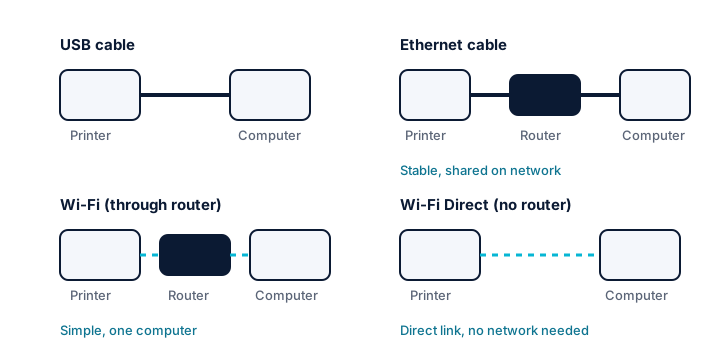
1 Understand how computers talk to printers
A little background makes every connection method easier to troubleshoot.
The computer prepares the page
When you click Print, the operating system converts your document into a language the printer understands. A driver, either built into the operating system or supplied by the manufacturer, handles that translation.
The job travels over a link
That data then travels over a link: a USB cable straight to the printer, or a network (Ethernet or Wi-Fi) where it is addressed to the printer’s IP address, much like mail sent to a house number.
The printer processes and replies
The printer receives the job, prints it and reports its status, such as “out of paper,” back to the computer. When that two-way conversation breaks, the computer usually shows the printer as offline.
Choose based on who prints and where
Count how many devices need to print and where the printer will sit, then use the comparison table below to choose.
| Method | Best for | Strengths | Limitations |
|---|---|---|---|
| USB | One computer on the same desk | Simple, reliable, no network setup | Not shared with other devices or phones by default; cable length limits placement |
| Ethernet | Shared printer near the router | Very stable; unaffected by Wi-Fi interference | Needs a cable run and a free router or switch port |
| Wi-Fi | Homes with laptops, phones and tablets | Flexible placement; prints from many devices | Depends on signal strength and router settings |
| Wi-Fi Direct | No router, travel, quick one-off jobs | Works without any network | Device usually loses internet while connected; fewer devices at once |
2 Connect with a USB cable
Get the right cable
Most printers have a USB-B port. You need a USB-A to USB-B or USB-C to USB-B cable depending on your computer. Many printers do not include one in the box.
Plug into the computer directly
With both devices on, connect the cable to a port on the computer itself rather than an unpowered hub or keyboard port.
Let the system detect it
Windows, macOS and many Linux systems detect the printer and install a driver automatically. If it does not appear, try another port and cable before anything else.
3 Connect with an Ethernet cable
Run a network cable to the router
Connect a standard Ethernet cable from the printer’s network port to a free port on your router or a network switch. Avoid the router’s internet or WAN port.
Check the link lights
Lights near the printer’s network port usually turn on or blink when connected. The printer gets an address from the router within a minute or so.
Print a configuration report
The network configuration report confirms the wired connection and shows the IP address you can use to add the printer. Some printers switch off Wi-Fi when a cable is connected.
4 Connect wirelessly with Wi-Fi or Wi-Fi Direct
Join the printer to your Wi-Fi
Use the printer’s control panel, WPS or the manufacturer’s official app. Full instructions, including printers without screens, are in how to connect a printer to Wi-Fi.
Keep the computer on the same network
The computer must be on the same network as the printer, not a guest network. If you have separate network names for 2.4 GHz and 5 GHz, they usually still count as one network, but some routers isolate them.
Or use Wi-Fi Direct
Enable Wi-Fi Direct on the printer and join its network from the computer’s Wi-Fi list using the password the printer shows. Switch back to your normal network afterward. Laptop-specific tips are in connecting a printer to a laptop.
Add the printer in your operating system
Whichever wireless method you use, finish by adding it: see how to add a printer to a computer.
Additional troubleshooting methods
Switch connection types to isolate a problem
If a wireless printer is unreliable, temporarily connect it by USB or Ethernet. If cable printing works perfectly, the issue lies with the wireless network, not the printer or driver.
Remove old printer entries when switching
Changing from USB to Wi-Fi often leaves the old entry behind. Delete the unused one so print jobs do not go to a connection that no longer exists.
Use official software only
If you need the manufacturer’s driver for any connection type, get it from the manufacturer’s official website. Ignore unsolicited calls or pop-ups offering paid connection help.
Model and operating-system considerations
| If you use | What to know |
|---|---|
| Windows 11 / 10 | Detects USB printers automatically; network printers are added in Printers & scanners. |
| macOS | AirPrint works over Wi-Fi and Ethernet; USB printers usually appear automatically. |
| ChromeOS | Network printing via IPP is the main route; USB support depends on the printer. |
| Laser printers in offices | Ethernet is often preferred for reliability with several users and large jobs. |
| Budget inkjets | Some models have no Ethernet port; check the specifications. |
Frequently asked questions
Is a USB connection faster than Wi-Fi?
For typical documents the difference is rarely noticeable, because printers are slower than either link. Very large photo or graphics jobs may start sooner over USB or Ethernet than over a weak Wi-Fi signal.
Can I use USB and Wi-Fi at the same time?
Many printers allow it, letting one computer use USB while others use the network. Each appears as a separate printer entry on the computer that uses both, so name them clearly.
Can I share a USB printer with other computers?
Operating systems have printer-sharing features that let other computers print through the one the printer is plugged into, but that computer must stay on. Connecting the printer to the network is usually simpler.
Do I need a router for a wireless printer?
Not if the printer supports Wi-Fi Direct, which creates its own small network. For everyday shared printing, a router-based Wi-Fi network is more convenient.
Related guides
-
Connectivity
How to Connect a Printer to Wi-Fi
Four ways to put a printer on your wireless network, how to choose between them, and how to confirm it actually joined.
-
Printer Setup
How to Add a Printer to a Computer on Windows, Mac or Chromebook
The operating-system steps for adding a printer that is already powered on and connected, plus what to do when it does not appear.
-
Printer Setup
How to Connect a Printer to a Laptop (USB-C, Docks and Wi-Fi Direct)
Solutions for the situations laptops create: missing USB-A ports, docks, moving between networks and printing without a router.