
Printer Troubleshooting
Printer Paper Jam: How to Clear It Safely and Stop It Happening
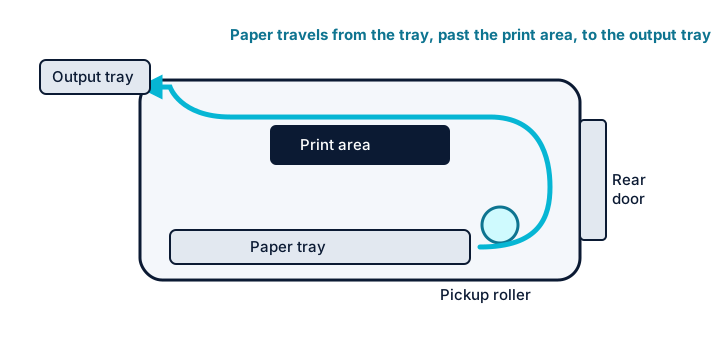
Paper takes a winding route through a printer: picked from a tray by rubber rollers, guided past sensors, under the printhead or across the drum, and, in laser printers, through a heated fuser before it exits. A jam happens when a sheet stops somewhere along that path. The printer halts to protect itself and asks you to remove it.
The way you remove a jam matters. Yanking paper out at an angle tends to tear it, leaving small scraps that cause the next jam, or can bend delicate parts. A few minutes of care usually saves a lot of frustration.
Quick answer
- Turn the printer off and, for laser printers, let it cool.
- Open the doors your manual or the control panel points to.
- Pull the paper slowly with both hands in the direction it normally travels.
- Check for torn scraps in trays, the rear door and the duplexer.
- Close everything, turn it on, and reload paper neatly within the tray guides.
Symptoms and possible causes
This guide applies if:
- The printer stops mid-job and displays a paper jam message or light.
- A sheet is visibly crumpled or stuck partway out of the printer.
- The printer reports a jam, but you cannot see any paper.
- Jams happen repeatedly, often at the same point.
- Several sheets feed at once or paper comes out wrinkled.
| Possible cause | How to recognize it | Covered in |
|---|---|---|
| Sheet stuck in the paper path | Visible paper; jam message | Step 1 / Step 2 |
| Torn scraps left behind | Jam message returns right after clearing a jam | Step 3 |
| Dirty or worn pickup rollers | No sheet feeds, or several feed at once | Step 3 |
| Overfilled tray or misadjusted guides | Skewed pages; jams at the start of a job | Step 4 |
| Damp, curled or unsuitable paper | Wavy sheets; jams worse in humid weather or with heavy stock | Step 4 |
Safety precautions
- Turn the printer off before reaching inside. Inkjet carriages and laser feed mechanisms can move unexpectedly.
- Laser printer fusers get very hot. Let the printer cool for several minutes and avoid touching any area marked with a heat warning.
- Do not use tools such as knives, scissors or tweezers inside the printer; they can scratch rollers, drums or sensors.
- If paper is caught somewhere you can only reach by removing screws or panels not meant for users, stop and contact the manufacturer.
- If toner gets on your hands or clothes, use cold water; hot water can set it.
1 Prepare before you pull
Read the jam message
Many printers show where the jam is, with a diagram or a code that points to a specific tray or door. Note it before you turn the printer off.
Switch off and wait
Turn the printer off with its power button. For laser printers, let it cool for several minutes, as the fuser near the exit is hot after printing.
Find the access points
Common access points are the front or top cover, the input tray, a rear access door and, on two-sided printers, the duplex unit. Your manual shows which ones your model has and how they open.
2 Remove the jammed paper
Use both hands
Grip the sheet with both hands, spread across its width, so you pull it evenly. One-handed pulls at a corner are what usually tear it.
Pull along the paper path
Pull slowly in the direction the paper normally travels, if you can. Pulling backward against the rollers is more likely to tear the sheet or damage parts. If the paper resists, try opening another access door to reach it from a better angle.
Do not force it
If the sheet will not move, check whether a lever or green release tab on your model loosens the rollers or fuser; your manual will say. Never force mechanical parts.
Check the sheet is whole
Lay the removed sheet flat and look for missing corners or strips. Any missing piece is still inside the printer.
3 When it says “jam” but no paper is visible
A jam message without visible paper is common and frustrating. The printer is responding to a sensor, which is triggered by something it thinks is blocking the path.
Search for scraps
With the power off, use a flashlight to look into every access point, including the tray slot, rear door and duplexer. Small torn pieces or labels can hide near rollers and sensors.
Check for foreign objects
Paper clips, staples, sticky notes and packing material can trip sensors. Remove anything that does not belong.
Clean the pickup rollers
Rollers that are dusty or glazed may fail to grab paper, which some printers report as a jam. Many manuals describe wiping them gently with a lint-free cloth lightly dampened with water. Follow your model’s instructions; see clean a printer for general guidance.
Power cycle
Turn the printer off, unplug it for a minute, then restart. This resets sensors that may have held on to an old jam state.
If the message persists after a careful search and restart, a sensor or roller may be faulty. Note the exact message and see printer error messages for how to proceed.
4 Prevent jams from coming back
Don’t overfill the tray
Stay below the maximum fill line marked inside the tray. Overpacked trays make rollers pick several sheets at once.
Set the guides snugly
Slide the paper guides so they just touch the stack without bending it. Loose guides let paper skew; tight guides make it buckle.
Use paper in good condition
Fan the stack gently before loading, and avoid curled, creased, damp or torn sheets. Do not mix different paper types in one tray.
Match paper type and weight
Check your printer’s supported paper weights and types in its specifications, and set the matching paper type in the print dialog. Heavy cardstock, labels and envelopes often need a specific tray or path.
Store paper properly
Keep paper sealed in its wrapper and lying flat, away from humidity and heat. Damp paper curls and sticks together.
Additional troubleshooting methods
Try a fresh ream
If jams began with a new pack of paper, switch to another one. Some paper is too thin, too thick, or has rough cut edges that catch.
Print one-sided to test
If jams only happen during two-sided printing, the duplexer may need checking or cleaning. Your manual explains how to remove it if it is user-removable.
Model and operating-system considerations
| If you use | What to know |
|---|---|
| Laser printers | Jams near the exit are often in or near the fuser, which is hot. Many models have release levers to free paper; use them as described in your manual and let the printer cool first. |
| Inkjet printers | The printhead carriage sits in the paper path. Move it only if your manual says it is safe, and never force it. |
| Duplex printers | Two-sided printing adds an extra loop in the paper path where scraps can hide. Check the rear door or duplex module. |
| Humid environments | Paper absorbs moisture and curls. Keep it wrapped until use, and load only what you need. |
Frequently asked questions
Should I pull jammed paper forward or backward?
In the direction the paper normally travels, if you can reach it that way. Pulling backward fights against the rollers and is more likely to tear the sheet. Your manual may recommend a specific direction for certain areas.
Why does my printer keep jamming on envelopes or cardstock?
Thick media needs a supported tray or feed path and the right paper type setting. Check the specifications for supported weights, use the recommended tray, and load only a few sheets at a time.
Can I use compressed air to clear scraps?
Use it cautiously, if at all. It can blow scraps deeper inside, and it can scatter toner dust in laser printers. A flashlight and gentle hand removal is usually safer.
Related guides
-
Maintenance
How to Clean a Printer Safely: A Basic Care Routine
A safe, step-by-step routine for cleaning the outside, scanner glass, paper feed rollers and interior of a home or office printer.
-
Troubleshooting
Printer Error Messages: How to Read and Respond to Them
A general method for understanding printer errors and codes on any brand, including safe first responses and how to avoid code-lookup scams.
-
Troubleshooting
Printer Not Printing: How to Find Where the Job Gets Lost
A methodical way to trace a print job from your app to the paper tray when the printer is connected but produces nothing.