
Printer Troubleshooting
Printer Printing Blank Pages: Inkjet and Laser Causes
A blank page is actually good news in one sense: the printer received the job and moved paper through. What is missing is the image. That narrows the cause to three areas: the ink or toner is not reaching the paper, the printer is being told to print nothing, or the paper and settings do not match.
Inkjet and laser printers fail in very different ways here, so this guide splits them. Start with the quick test below to find out whether the printer or the document is responsible.
Quick answer
Print a configuration or test page from the printer’s own menu. If it also comes out blank, the problem is in the printer: check for leftover tape or seals on new cartridges, empty or dried ink, clogged nozzles (inkjet), or a toner sealing strip that was not removed (laser). If the test page prints but your document does not, check the document for blank pages or white text, and match the paper size in the print settings.
Symptoms and possible causes
This guide applies if:
- Paper feeds through normally but comes out completely blank.
- Blank pages started right after installing a new ink or toner cartridge.
- Only some pages of a document come out blank.
- One color, or black, is missing entirely while others print.
- An inkjet that has not been used for weeks prints nothing.
| Possible cause | How to recognize it | Covered in |
|---|---|---|
| Protective tape or seal left on a new cartridge | Blank from the first page after a cartridge change | Step 2 / Step 3 |
| Empty or dried-out ink | Gradual fading before going blank; printer unused for a long time | Step 2 |
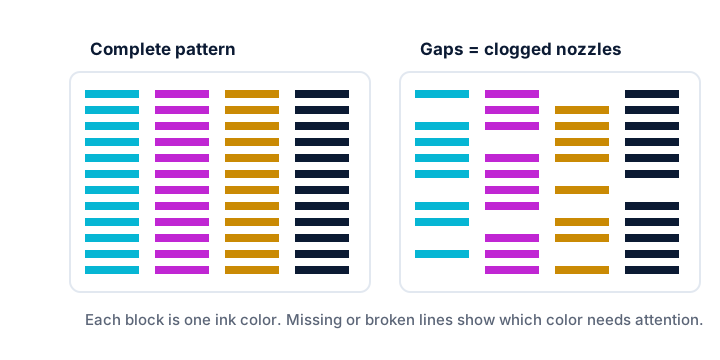
| Clogged printhead nozzles | Nozzle check pattern has gaps or missing colors | Step 2 |
| Toner cartridge seal or packing not removed | Laser printer blank right after a new toner or drum was fitted | Step 3 |
| Document contains blank pages or white text | Printer test page prints fine; problem is one file | Step 4 |
| Paper size or driver mismatch | Extra blank pages between printed ones; content shifted off the page | Step 4 |
Safety precautions
- Turn laser printers off and let them cool before reaching inside; the fuser can be hot enough to burn.
- Handle toner cartridges gently and keep them level. If toner spills, wipe it up with a dry cloth and cold water; do not use a regular vacuum cleaner, and avoid breathing the dust.
- Keep hands away from an inkjet carriage while the printer is on; it can move without warning.
1 Find out whether it is the printer or the document
Print an internal test page
Use the printer’s menu to print a configuration, status or quality page. Menu names vary by model; check your manual if needed.
Read the result
If the internal page is also blank, go to Step 2 (inkjet) or Step 3 (laser). If it prints normally, the printer can make marks; skip to Step 4.
Check supply levels
Look at ink or toner levels on the control panel or in the manufacturer’s app. Treat estimates as rough: printers can misjudge levels, especially with refilled or third-party cartridges.
2 Inkjet printers: ink delivery checks
Remove all tape and caps from new cartridges
New inkjet cartridges usually ship with a plastic tab, tape or cap covering the nozzles or air vent. Take the cartridge out and check carefully; a small strip left in place is enough to block printing. Do not touch the copper contacts or nozzles.
Reseat the cartridges
Push each cartridge in until it clicks. A cartridge that is not seated may not be recognized or may not feed ink.
Run a nozzle check
Most inkjets can print a nozzle check pattern from their maintenance or tools menu. Gaps or missing colors mean some nozzles are blocked. A completely blank pattern for one color usually points to an empty, unsealed or blocked cartridge.
Clean the printhead, in moderation
Run the printer’s built-in head cleaning, then repeat the nozzle check. Allow a few cycles with rest between them if needed, but stop if nothing improves: each cleaning uses ink. Our printhead cleaning guide covers when to stop and what else to try.
Replace genuinely empty or dried cartridges
Ink can dry out in a printer left unused for a long time. If cleaning does not restore output, the cartridge or, on some models, the printhead may need replacing. Check your manual for which parts are user-replaceable.
3 Laser printers: toner and drum checks
Laser printers form an image with a light-sensitive drum and powdered toner, then fuse it to the paper with heat. A blank page means toner never reached the drum or the drum never transferred it.
Turn off and let the printer cool
Give it several minutes before opening the toner door, especially after heavy use.
Check for a sealing strip or packing
Many new toner cartridges have a pull-out sealing strip, a protective cover or orange packing pieces. Check the cartridge and the drum unit (if separate) for anything left from packaging, following the instructions that came with the cartridge.
Reseat the toner and drum
Remove the cartridge and drum, gently rock the toner cartridge side to side if its instructions say to, then reinstall both until they lock. On models with separate drums, make sure the toner is properly latched into the drum.
Consider a failing drum or cartridge
If a properly seated, fully unpacked cartridge still prints blank, the cartridge or drum may be faulty. Try a known-good cartridge if you have one. See drum and toner cartridges for how the two parts differ.
4 Check the document, app and paper settings
If the printer prints its own test page but your document comes out blank, the cause is almost always on the computer side.
Look for blank pages in the document
Extra page breaks, empty paragraphs at the end or a blank slide can all print as empty sheets. Use print preview to see exactly what will be sent.
Check for white or hidden text
Text set to white, or layers hidden in a design app, will print as nothing. Select all the text and set it to automatic or black to test.
Match the paper size
If the document is Letter but the printer is set to A4, or vice versa, content can shift or produce extra blank pages. Make sure the paper size in the print dialog matches the paper loaded.
Try another app or file format
Print the same content as a PDF or from a different app. If it then prints, the original app’s print settings are the issue. Re-adding the printer can also refresh a confused driver.
Additional troubleshooting methods
Turn off “print separator pages”
Some drivers and office printers add a separator or banner page between jobs. If you get one blank page per job, check the driver’s advanced options.
Make a copy as a cross-check
Making a copy uses the printer without the computer. If copies are also blank, focus entirely on the printer’s supplies and hardware.
Model and operating-system considerations
| If you use | What to know |
|---|---|
| Inkjet printers | Dried ink and blocked nozzles are the leading cause after long periods of non-use. Printing a page every week or two helps keep ink flowing. |
| Laser printers | Blank pages are uncommon and often follow a cartridge or drum change. Leftover packaging is the first thing to check. |
| Third-party or refilled cartridges | These may not report levels accurately or may not be recognized. If blanks start after switching, test with the manufacturer’s cartridge. |
| Windows, macOS, ChromeOS | Paper size and print preview settings live in each app’s print dialog. Defaults may differ between apps on the same computer. |
Frequently asked questions
Why does my new ink cartridge print blank pages?
Most often a piece of protective tape or a cap is still on the cartridge, or it is not fully clicked in. Remove it, check both sides for any remaining tab, reseat it and run a nozzle check.
How many head cleanings should I run?
Follow your manual, but a common approach is one or two cycles followed by a nozzle check, then a rest period before trying again. Repeated back-to-back cleanings waste ink and rarely help more.
My printer prints a blank page after every document. Why?
This is usually a document or driver setting, not a hardware fault: a trailing page break, a paper-size mismatch, or a separator page option. Check print preview and the driver’s options.
Does printing blank pages damage the printer?
Not in itself. However, running an inkjet with an empty cartridge for long periods can harm the printhead on some models, so replace empty cartridges promptly.
Related guides
-
Maintenance
Printhead Cleaning: When and How to Clean Inkjet Nozzles
How to decide whether your inkjet printhead needs cleaning, run nozzle checks and cleaning cycles sensibly, and prevent future clogs.
-
Print Quality
Faded Printing: Why Prints Look Pale and How to Fix It
Work out whether pale prints come from supplies, a saving mode, the paper or a worn part.
-
Maintenance
Ink and Toner Explained: Types, Page Yield and Storage
A plain-language explanation of inkjet ink, laser toner, cartridges and tanks, page yield standards, storage and recycling.